 Max·
How to preview Vue components in VS Code
If you are developing applications with Vue or Nuxt, previewing individual components in isolation directly within your editor can significantly speed up your workflow. In this guide we'll go over tools and extensions you can use to preview components and some caveats that are not supported in most extensions.
Key Takeaways
- The best way to preview Vue components in VS Code is with Timeful's Vue/Nuxt Preview extension
- The extension is free to use
- The extension supports Nuxt and Vite projects
- You can also preview specific screen sizes and breakpoints with the extension
How to preview components in your app
There is no native way to preview Vue components in isolation. You have three real options:
- Use Timeful's Vue/Nuxt Preview extension for Visual Studio Code (instant preview, zero setup, preview at multiple screen sizes)
- Integrate Storybook into your app and create stories for each component
- Add a custom page to your app with just the component
For most developers, the Timeful extension is the easiest option because it does not require any setup, can preview any component in your project, and provides additional features such as previewing at different screen sizes and breakpoints.
Storybook is a good option if you have complex components with required props and need to preview many different states. You can write a "story" for each variant with the required props and context and then open that story in Storybook in your browser.
I initially tried going the Storybook route for my personal projects. While it's fantastic for massive enterprise design systems, it felt like serious overkill for a solo developer or a small startup. I spent more time writing the stories and configuring the setup than actually building the components. I just wanted a magical button that said "show me this file," which is why a VS Code extension is such a relief.
How to preview Vue components at different screen sizes
Once you have a way to preview components you probably want to view them at different breakpoints and screen sizes. There are two ways to preview a Vue app or component at different screen sizes:
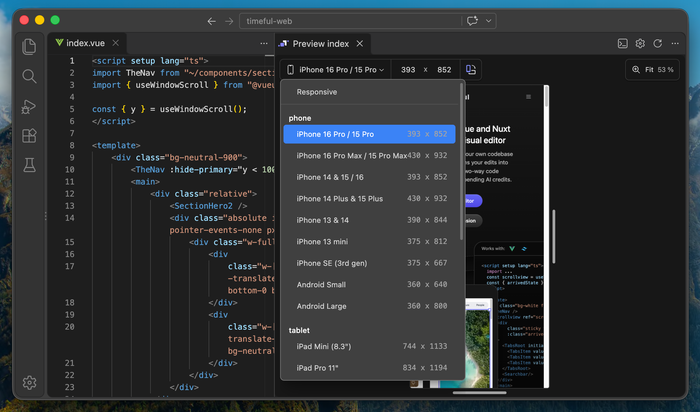
- Open the component preview in the Timeful VS Code Extension and select a screen size preset or zoom level from the dropdown.
- Start a Vite dev server to run your app and open it in your browser's developer tools. Then, toggle the device toolbar and select a device.
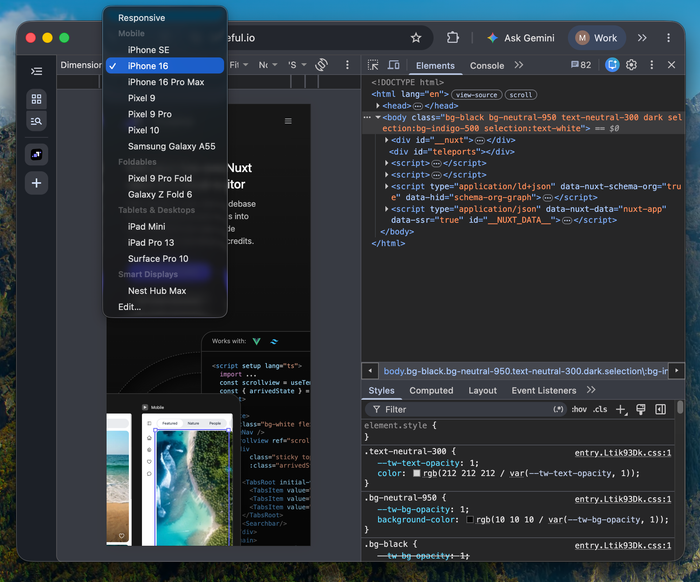
The Timeful extension is the easiest option because it opens in your IDE, lets you preview individual components, and requires much less steps.
How to preview Vue components in Nuxt
Previewing components in Nuxt is more complicated than regular Vue+Vite projects because Nuxt runs its own setup code and middleware. To correctly preview components, the extension needs to:
- Run Nuxt's app setup code
- Support SSR functionality
- Support Nuxt server islands
- Run Nuxt's middleware
- Support auto imports
The only extension that supports these features and can correctly preview Vue components in Nuxt is the Vue/Nuxt Preview extension by Timeful.
An alternative is to manually create a new page in Nuxt with only your component and provide the context that you need in the page's setup script. Or, you can use Storybook with the Nuxt addon.
I learned this the hard way. I tried using some simple preview extensions to view my components in Nuxt, but it just ended up with errors due to auto-imports and missing context. Server islands or SSR features either wouldn't show or just throw errors. The Timeful extension just works out of the box with Nuxt.
How to use the Vue/Nuxt Preview extension by Timeful
Step 1: Open the VS Code Marketplace and install the Timeful extension
First, you need to install the extension from the VS Code Marketplace. You can do this using one of these methods:
- Install the extension via the Extension page on the VS Code Marketplace website
- Install the extension directly in VS Code by searching for "Timeful" in the extension tab (Open extension in VS Code)
- Run the following command in the terminal (easiest for agents):
code --install-extension timeful.timeful-studio-vscode
Step 2: Open a Vue component in your Vite or Nuxt project
The preview is support for every Vue component in your project and launches for the component that is open for editing. So, after installing the extension, you need to open a Vue file in your project for editing.
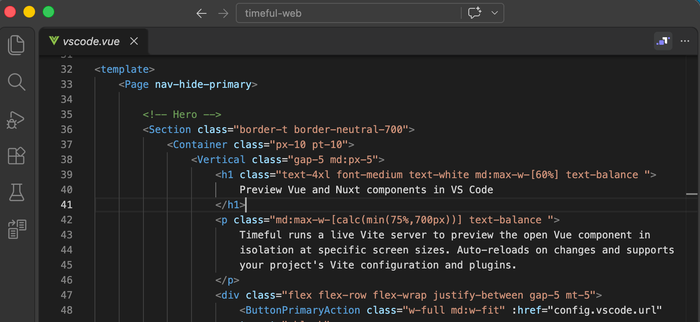
Step 3: Click the Timeful logo in the active code editor's tab header
If a Vue file is open in VS Code then the Timeful logo will appear in the tab header. Click on the logo to start a preview for the component in a new tab.
You'll see a new tab opened next to the code editor. In the background, a new Vite dev server is started with custom code injected to show the preview. It may take a few seconds to start.
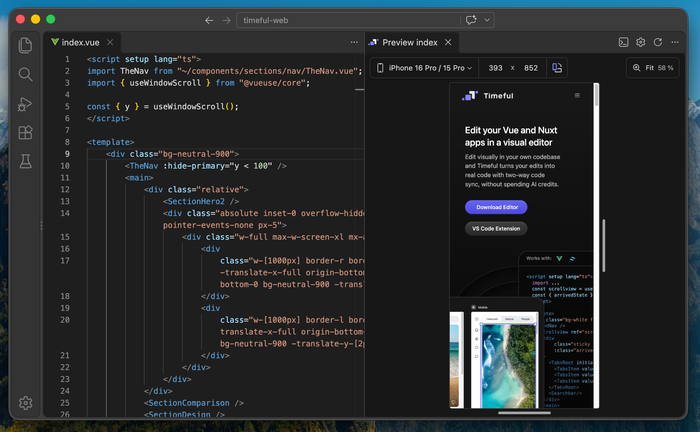
If you open a different component then the preview will automatically update to show the new component.
What is it like using the Timeful extension?
I have been using the VS Code Extension to develop the Timeful website and it has genuinely saved a lot of time. Most of the new pages I am writing or designing either don't have a public path yet, or are specific section components that are not yet used on any page, which means that they are difficult to preview.
I used to make a new page with the specific component to preview, but that meant I had to delete or ignore the page whenever I wanted to publish an update or the preview would be published as well.
Now, with the extension I can just keep the preview open while editing and stop thinking about it. I can't imagine going back to alt-tabbing to the browser for a preview, especially when working on a single monitor.
Limitations when previewing components
Some use-cases are difficult to preview, such as components that strictly rely on context provided by a parent. Keep in mind the following limitations:
- Components that rely on specific context or props from a parent component need to be previewed using a tool like Storybook.
- Server-Side-Rendered pages and components need an extension that specifically supports it, like Timeful.
- Full stack frameworks like Nuxt require an extension that is compatible with the framework. Most extensions don't fully support Nuxt. Timeful is one of the extensions that specifically supports Nuxt.
FAQ
How can I preview a Vue component in VS Code?
You can preview a Vue component by using a VS Code extension like Vue/Nuxt Preview by Timeful
Can I preview Nuxt server islands?
Yes, but only if you use the Timeful extension for VS Code.
Can I preview a specific Vue component when using a Vite dev server?
No, you can only run the entire app. To preview a specific component you need to use a VS Code extension like Vue/Nuxt Preview by Timeful
How can I preview my app for a specific screen size?
You can use a VS Code extension like Vue/Nuxt Preview by Timeful, or open your app in your browser's developer tools and select a specific size.
What version of Nuxt does Timeful work with?
The Timeful extension works with Nuxt 4
Conclusion
There have been multiple etensions over the years to preview components, most are now abandoned. The Timeful extension is by far the most complete and actively maintained option to preview Vue components. You don't need to set up anything manually and can quickly preview any component in your project.
Storyblock still is the best option for complex components with multiple variants and states until Timeful adds a way to pass properties to the preview, which is a feature that is currently in development.